
WishCow
About WishCow

WishCow's Achievements
0
Reputation
-
Ha! Managed to get it work with the following: #space:: Keywait LWin SendInput ^{Space} Thank you for the suggestion! I love you!
-
Thank you for the great suggestion, but unfortunately it's not good. I managed to override the shortcut, but Launchy still says "The hotkey is already in use". I'll try looking through the docs, maybe I can simulate another key combination.
-
Hey If someone can answer my question, he/she shall receive my eternal gratitude. I have been looking for this for 2 hours, and I cannot find a solution. The problem: I want to use the win+space shortcut for Launchy, but windows wants to steal that from me for some "peek desktop" thingy. This combination is burned to my fingers like alt+tab is, so I really really don't want to change it. I also use the same combination for Gnome-Do in Ubuntu. I have read that you can disable all the windows+* key combinations with a registry entry, but I want to keep the win+e win+r win+d shortcuts. So: How can I disable only, and only the win+space shortcut? I don't care if I have to turn to dll hacking, registry editing, file deleting, killing someone, whatever, just give me back my win+space.
-
Ah nonono, no data was lost, the correct partition got formatted, but AFTER formatting, setup somehow decided to make another partition the boot partition (instead of the freshly formatted one, weird) I have never heard that you should unplug the drives before installing, I have tried it and it worked. Thank you very much for your answers!
-
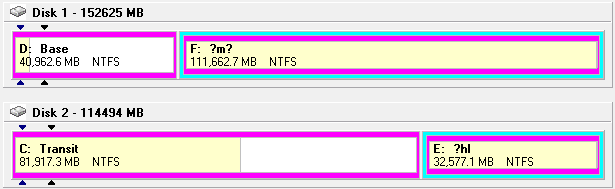
Hey Please help a fellow msfn member out, I got a little confused about boot partitions: I have bought a new computer, and installed a fresh (nlited) xp on it. The computer has two sata drives, both having two partitons, I'll include a picture from Partition Magic: The partiton names are messed up, no clue why, windows displays them fine: C: Transit D: Base E: Pandora F: Vault This is how it was before the installation: C: Base D: Vault E: Pandora F: Transit In the textmode phase, I have deleted the [base] partiton, recreated it, and installed windows on it. After the installation was complete, the [base] partition had the drive letter D: assigned to it, and somehow the [Transit] partiton became C:, the boot partition. This is pretty much a disaster for me, as I have a lot of application data on the [Transit] partiton, much of them using absolute paths, so I would have to rewrite every app's path. What can I do to change the boot partiton to the [base] partiton, so I can reassign a drive letter to the [Transit] partiton? I have read that there are tools like fixmbr, fixboot, bootcfg, but I have no clue which one I need. For most of the commands you need to specify an argument in a form like this: Device0\Disk0\Partiton1\Windows ...or something like that. How can I check which partiton is which on my drives? Partition Magic doesn't seem to have this info. (or I just can't find it) So to recap: My windows installation is on D:, but my boot partition is C:. I would like to have D: as my boot partition, and reassign the letter C: to it. Also what can I do to avoid this happening on the next install? Do I have to rearrange my partitions or sata cables, or something?