
Professor Frink
About Professor Frink

Recent Profile Visitors
2,141 profile views

Professor Frink's Achievements
0
Reputation
-
I'm trying to figure out how to automate the behavior of hidden icons in the Notification Area, specifically for the Outlook "New Mail Message" icon. Is this simply handled via a Registry setting, or is it something else? You know, like the way the Jump Lists are controlled by individual files in the "AppData" folder? FYI -- I understand how to manually change it by using the "Customize" menu. But I'd like to push it to everyone.
-

Terminal Server and the end-user experience
Professor Frink replied to Professor Frink's topic in Windows 2000/2003/NT4
Wow, that worked perfectly. I can't believe I didn't notice that setting before. Thanks! -
I'm experimenting with setting up a Terminal Server, and I'm trying to figure something out. I understand that the end-user connects via Remote Desktop, but the end result after logging on is the user sitting on the server desktop, just like they were sitting in front of the server. I'm only doing this to run Office 2000 (for one old custom app). Is there any way to change the behavior of Remote Desktop and the end-user experience? Some sort of sandbox environment? FYI -- this is Server 2003, SP2 and XP Pro, SP3
-
Full Screen Reading View in unattended Word 2007
Professor Frink replied to Professor Frink's topic in Microsoft Office
Nope, I still haven't figured this out. -
How do you turn off the setting that opens Word documents from e-mails in the "Full Screen Reading View" ? In the Office Customization Tool I went to Modify User Settings > MS Office Word 2007 > Word Options > Popular. I set "Open e-mail attachments in Full Screen Reading view" to disabled, but it still ends up being enabled. And just for the heck of it I also tried it as "enabled" and "not configured", but no matter what I do it is always turned on. After Office is installed, I can turn it off easily enough by going to Word Options > Popular, and unchecking the box. But I'm deploying this to a few hundred workstations. FYI -- I'm using the updated version of the OCT.
-
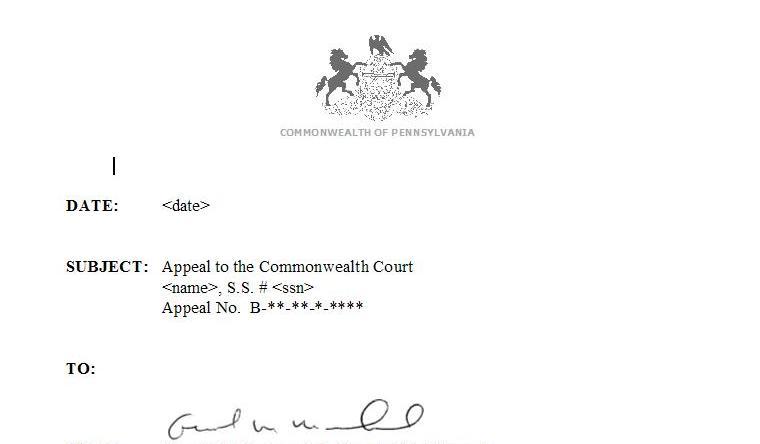
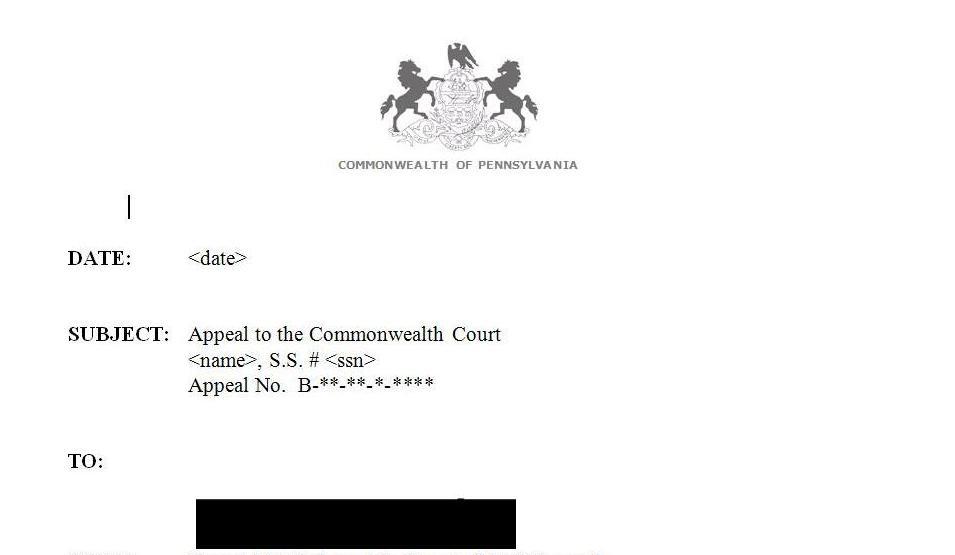
We have some Word documents created in an older version, and the image files are apearing in Word 2007 as a black box. I attached screenshots of both -- the first is Word 2002, and the other is Word 2007. As you can see, the picture file in the header is fine, but the other image is screwy. And that screenshot with the black box is exactly as it looks. Weird, huh? I asked around the office, but no one remembers who created this template or when, so I don't know what the original source image was (if that even matters). A few things I've tried already: I've tried changing all sorts of settings within Word 2007 and also the settings of the picture, but there's no change. I read somewhere online that it might be related to the "Save as PDF" add-in, so I did a new install without the add-in -- no change. I tried doing a bare-bones install of Office 2007 without SP1 or any hotfixes -- no change. I found KB article # 937496 that included a Hotfix which is supposed to be a part of SP1. I did a plain install with no patches, then added that single Hotfix -- no change. I tried converting the "doc" file to a "docx" file -- no change. I'm at my wit's end.

-
For all of my users, I use Active Directory to map their home folders, under the "Profile" tab in the user's properties. But every once in a while the folder doesn't map correctly. The local file path to the home folders as they reside on the server looks like this: C:\Data\Home\username (The "Home" folder is set as shared, and each username has their own folder). Let's say the username is jsmith. The path to their H: drive would look like this in their Active Directory properties, under the Profile tab: \\server name\home\jsmith Every once in a while, when a user logs on, their H: drive doesn't map correctly. But oddly enough, whatever the problem is, it's not simply causing the H: drive to not connect -- it drops down one folder. So whenever this happens, his H: drive would show up like this: \\server name\home So whenever this happens, the user's H: drive is showing all of the other users' folders (w/o access, of course, due to security settings). Usually a reboot of the PC will fix the problem, but what causes it in the first place? A few FYI's: The data servers are 2003, SP1 I can't use logon scripts, so this is how I have to map everyone's home folder I don't control the DNS servers or Domain Controllers, I'm just one piece of a much larger org.
-
Is there any way to keep it from creating a desktop shortcut? It creates "Cyberlink PowerDVD.lnk" on every new user's desktop. Something in the custom.ini file, or perhaps a registry setting?
-
I don't have much experience with virtual machines, but I will be needing to use them soon. My concern has to do with networking. Our corporate LAN uses MAC filtering to lock down each port. The one time I tried VirtualPC it caused a port lock because VirtualPC created a new, virtual MAC address that caused a conflict. BTW -- The MAC filtering is not under my control. I know my two main choices are VirtualPC and VMWare. Does one or both of them have a setting that will keep it from screwing up the MAC address, so the MAC within the virtual environment stays the same? I can't even start experimenting until I get this part straightened out. Oh yeah, we also use static IP addresses, so the virtual environment must use the same IP info that is on the real PC.
-
Workstation will not join Domain
Professor Frink replied to Professor Frink's topic in Unattended Windows Vista/Server 2008
Bump. In all my Google searching, everyone keeps talking about checking dcdiag.txt or NETSETUP.log from C:\Windows\Debug. But I don't have those two files. Am I doing something wrong?