
patters
About patters

patters's Achievements
0
Reputation
-
Hi all, Thought I'd share my build script for automating the creation and maintenance of PE 4.0 builds. It works using only the official Microsoft Windows ADK for Windows 8. It can use the x86 or AMD64 versions of ADK, and will build x86 or AMD64 versions of Windows PE 4.0, with drivers, additional components and scripts. It's a batch script that's easy to understand and edit, and it will create ISOs (with BIOS and EFI support), will automatically upload/freshen boot images on the WDS server(s), and will give you an onscreen prompt how to make a bootable USB key: http://pcloadletter.co.uk/2012/09/05/windows-pe-4-0-builder/ Enjoy, Patters
-
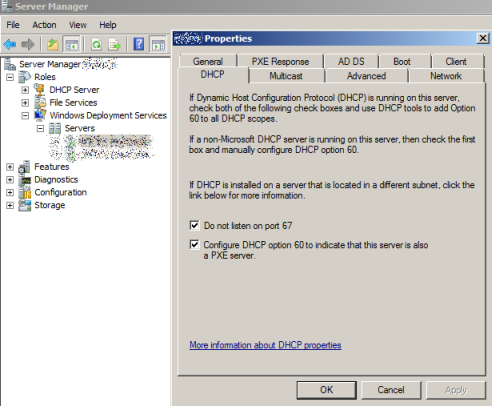
I forgot all about my earlier post in this thread. I did get VMware EFI PXE booting with WDS working. Here's an update which may help someone. VMware Support's testing made clear to me that the EFI PXE bootrom in vSphere 5.0 does definitely work, so I went back to my WDS server in more detail. The Microsoft KB (http://support.microsoft.com/kb/2012858) which comes up while researching this issue is a bit misleading. It suggested that in case of problems, an EFI PXE client should be hard-configured in WDS/DHCP to boot the boot loader boot\x64\Bootmgfw.efi In my infrastructure the WDS server is also a DHCP server. There are several workarounds for this since port 67 is used for both services. The first Microsoft-recommended method is to tick the boxes in the screenshot below: The downside of this method is that if DHCP option 60 is configured, Windows puts this in for *all* DHCP scopes on the server. With DHCP option 60, DHCP option 67 (Boot File Name) is ignored. This is not ideal because you may need to have different PXE settings for different subnets, say if you had Linux clients, or wanted to use VMware Auto-Deploy for instance. So, until now in my environment I had ticked the "Do not use port 67" option in that screenshot, but *not* the DHCP option 60. When this is the case, you need to define DHCP option 67 (Boot File Name). This had been set to boot\x86\wdsnbp.com so as to list all boot images on the WDS server as appropriate for both x86 and x64 clients. It worked fine like this for several years. When I was initially testing EFI PXE I consulted Microsoft KB2012858 and saw that I needed the loader boot\x64\bootmgfw.efi instead. But setting it to point to that file was crashing the VM. It transpires that the *only* way to get EFI PXE working with WDS when that same server is also a DHCP server is in fact to use the DHCP option 60 in that screenshot. I haven't carried out a packet trace, but I can see from the WDS logs that it's a whole lot more complex than just handing the PXE client the bootmgfw.efi loader. What it seems actually happens is that a temporary BCD boot menu is built on the WDS server (the client downloaded \Tmp\x64{25986027-7DF6-4A64-8133-BCE5DCCF5542}.bcd) and the whole thing behaves just like Windows Vista/7/2008's own proper boot loader, with Boot.sdi, and the various fonts being downloaded individually too. Perhaps there's dynamically generated stuff being sent to the client. If it isn't done exactly in the prescribed way, it fails. So really I think this ought to be made clearer in that Microsoft KB.

-
VMware ESXi 5.0 offers EFI firmware support, including PXE. I've been looking at this just recently because I want to make sure all servers built from now on are legacy free. The EFI firmware correctly IDs itself from what I can see, because I can see from the WDS events that it does successfully TFTP download the file boot\x64\Bootmgfw.efi However, it crashes and powers off the VM when it is executed, even though I'm on the latest ESXi (5.0U1). I followed the tips here: http://support.microsoft.com/kb/2012858 I have been able to work around this for now using a WinPE ISO image with EFI support, while VMware support look into the issue for me. To do this I updated my unified Windows PE build script to support EFI. This single batch script will build x86 and/or x64 versions, will ingest drivers, supports wifi, builds ISOs, and will automatically freshen the WDS boot images when complete. It does not use any third party tools - only Microsoft's WAIK: http://pcloadletter.co.uk/2011/12/03/windows-pe-builder-script-for-waik-including-wifi-support/
-
I got wifi working without using a third-party PE builder and wrote it up on my blog. My batch script uses the normal WAIK tools and will build both x86 and x64 versions. http://pcloadletter.co.uk/2011/12/03/windows-pe-builder-script-for-waik-including-wifi-support/
-
Win7 PNP Driver Staging without using DISM?
patters replied to kiwidj's topic in Unattended Windows 7/Server 2008R2
I think I've found the answer to my problem now that I'm aware of the log at %systemroot%\panther\setupact.log. I see: PnPIBS: Finished reading driver paths from unattend.xml. PnPIBS: Connecting to driver path \\myserver\UNATTENDED\drivers\7-x64\Dell745.drivers using credentials provided ... PnPIBS: Error 0x4C3 occurred while connecting to driver path \\myserver\UNATTENDED\drivers\7-x64\Dell745.drivers. [gle=0x000004c3] PnPIBS: WARNING: Could not access path \\myserver\UNATTENDED\drivers\7-x64\Dell745.drivers. Error 0x4C3 (67 in decimal) is when you try to connect multiple times to shared resources on the same server from a single user context with multiple sets of credentials. It's strange to see that because I'm using the same UPN login (user@domain) both for connecting to my unattended share (in my PE-based vbscript), and for adding into the XML so I don't really understand why it should fail. I can get around the problem by using the FQDN of the server in the autounattend.xml, thereby having Windows PE believe it's dealing with another distinct host. ...And I've verified that the offlineServicing pass now adds the drivers successfully! -
Win7 PNP Driver Staging without using DISM?
patters replied to kiwidj's topic in Unattended Windows 7/Server 2008R2
Ok, a lot of reading and futile testing later, and I see that the guy who re-wrote ZTIDrivers.wsf for MDT2010 got it to copy the drivers locally, then add a devicepath, then invoke Sysprep. http://deployment.xtremeconsulting.com/2009/10/28/how-to-debug-mdt-litetouchdriver-problems/ That to me would tend to imply that the offlineServicing pass doesn't work otherwise surely he would have used it. EDIT - this Technet article seems to say that for a driver to be applied in offlineServicing, it first needs to be in the WinPE driver store. It then gets copied across from there. More testing in the morning... -
Win7 PNP Driver Staging without using DISM?
patters replied to kiwidj's topic in Unattended Windows 7/Server 2008R2
Hi, I have adapted my existing vbscript 2003/XP unattended install to Windows 7/2008R2. Using XMLDOM my script edits a template autounattend.xml file and injects some entries (like hostname from the host database), then starts setup. I have the entire install working nicely but, like the thread starter, I can't get drivers integrated the 'old-fashioned' way (i.e. not using DISM). I support too many hardware configs to inject all the drivers into the base image, I don't want multiple OS images because frankly there's no point, and I'd rather not use the AuditSystem pass and Sysprep if I can help it. They add plenty of additional complexity, and again are not really needed in my case. As I understand it, I should be able simply to place some valid driver paths with credentials in OfflineServicing like so (I copied this from IE's XML viewer, so it's not the actual XML) and they should be soaked up into the machine's local driver store: - <settings pass="offlineServicing"> - <component name="Microsoft-Windows-PnpCustomizationsNonWinPE" processorArchitecture="amd64" publicKeyToken="31bf3856ad364e35" language="neutral" versionScope="nonSxS" xmlns:wcm="http://schemas.microsoft.com/WMIConfig/2002/State" xmlns:xsi="http://www.w3.org/2001/XMLSchema-instance"> - <DriverPaths> - <PathAndCredentials wcm:action="add" wcm:keyValue="2"> - <Credentials> <Domain>mydomain.local</Domain> <Password>mypassword</Password> <Username>unattendeduser</Username> </Credentials> <Path>\\fileserver\drivers</Path> </PathAndCredentials> - <PathAndCredentials wcm:action="add" wcm:keyValue="3"> - <Credentials> <Domain>mydomain.local</Domain> <Password>mypassword</Password> <Username>unattendeduser</Username> </Credentials> <Path>\\fileserver\drivers</Path> </PathAndCredentials> </DriverPaths> </component> </settings> I thought this would have broadly the same effect as OEMPnpDriverPaths in XP/2003 (i.e. it would integrate my drivers in the offlineServicing pass) but it appears not. The drivers do not get installed. I tried using local paths without credentials too (and putting the drivers in $OEM$\$1) to no avail. If I later manually click Update Driver and browse to the driver path in specified above, the driver installs. Reading about how MDT works on this problem seems to suggest my idea about how it should work is correct: http://exec.typepad.com/airdesk/2009/10/windows-7-deployment-part-6.html According to that post, the offlineServicing pass is indeed supposed to add any drivers that are found in the specified paths into the local driver store. Has anyone got this to work? I have noticed that you can add an additional devicepath in the registry (http://technet.microsoft.com/en-us/library/dd919224(WS.10).aspx) but this doesn't solve my problem. Many integrated video cards for instance have Microsoft supplied drivers in Windows 7 which are old. Adding a devicepath to the registry after the machine is built won't cause them to be updated without manual intervention. My final autounattend.xml (after editing by script) passes validation in WSIM so I don't think it's a syntax problem. I think I'm just not understanding the mechanisms properly. In case it's relevant - the driver I'm testing with is a signed Intel Q965 display driver, and a SoundMax HD Audio (both for Dell Optiplex 745). Each time I test the build it is ignored and the standard Windows drivers are installed instead. Manually browse to those drivers after the machine is built and they are preferred over the Windows ones. It's as if offlineServicing never runs. Is that because I'm launching from my own Windows PE 3.0, and not Boot.wim? Is there any logging I can check? Furthermore, I've compared my XML to this example autounattend.xml for offlineServicing and I still can't get any joy: http://support.microsoft.com/kb/978226