
click-click
About click-click

Recent Profile Visitors
5,107 profile views



click-click's Achievements
9
Reputation
-
I run WinNTSetup on updated Win10 LTSC and W11 systems and use it to install, fix mount points, or add new systems to the BCD. I noticed an entry in the BCD that was not showing in the boot menu so I tried to add the entry again with WinNTSetup, but got the error. All of my local up-to-date systems where I tried this showed the same error. I then booted and used an 1809 LTSC VHDx from 2023-12 which did not give me an error. I deleted the old entry with bootice and the newly added entry now shows in the boot menu. I don't have a clue as to what was going on, or fully understand how bcdboot decides what to do. I ran the same command mentioned in my previous post and this time bcdboot had completely different verbose messages indicating Boot files successfully created. No WinVerifyTrust this time and I must wonder if any files actually get copied/replaced in the EFI partition when the stuff in z:\Windows is older. My guess is the missing boot menu entry for the system in the BCD was an indication of some type of corruption that was causing the error, even though booting the rest was not a problem. c:\>bcdboot Z:\Windows /s S: /l en-US /f UEFI /v BFSVC: ServiceBootFiles MuiOnly:n Res:y Fonts:y BootMgrOvw:n BootStatOvw:n DbgTrn:y SuspendBDE:n BootEx:y Offl ine:n BFSVC: Using EX bins because bootmgfw on ESP is 2023 already. BFSVC Warning: EX boot manager source file Z:\Windows\boot\EFI_EX\bootmgfw_EX.efi does not exist, failing grac efully to avoid block servicing. BFSVC: BfsInitializeBcdStore flags(0x0000021c) RetainElementData:n DelExistinObject:n BFSVC: VolumePathName for Z:\Windows is Z:\ BFSVC: SystemRoot is \Windows BFSVC: Opening template from \Device\HarddiskVolume13\Windows\System32\config\BCD-Template. BFSVC: Opening store from \Device\HarddiskVolume1\EFI\Microsoft\Boot\BCD BFSVC: Creating General objects. BFSVC: Creating Resume object. BFSVC: Creating MemTest object. BFSVC: Creating OsLoader object. BFSVC: OsLoader identifier: {04924720-269c-11f1-8157-dd48fe8b5d84} BFSVC: Removing duplicate entries. BFSVC: Create BOOTMGR object RetainBootDefault:n BFSVC: Setting {default} to {04924720-269c-11f1-8157-dd48fe8b5d84} BFSVC: Cleaning up debugger settings. BFSVC: Cleaning up hypervisor settings. BFSVC: Opening recovery store from \Device\HarddiskVolume1\EFI\Microsoft\Recovery\BCD BFSVC: Creating General objects. BFSVC: Create BOOTMGR object RetainBootDefault:y BFSVC: Setting {default} to {5ae80ebc-b03e-11f0-ad44-b5dd86473841} Boot files successfully created.
-
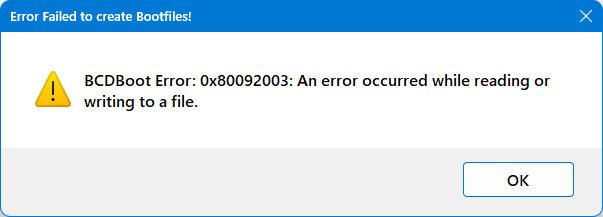
I assigned the ESP partition a drive letter so I could run the bcdboot from a command line intsead of with WinNTSetup and I got the same error: C:\>bcdboot Z:\Windows /s S: /l en-US /f UEFI /v BFSVC: ServiceBootFiles MuiOnly:n Res:y Fonts:y BootMgrOvw:n BootStatOvw:n DbgTrn:y SuspendBDE:n Offline:n BFSVC: Using EX bins because bootmgfw on ESP is 2023 already. BFSVC Error: WinVerifyTrust failed. Error code = 0x80092003 BFSVC Error: ServicingBootFiles failed. Error = 0x80092003 Failure when attempting to copy boot files. Seems like bcdboot will fail if the boot files from the EFI partition are newer than what is in the source ?\Windows
-
Here is a recent log file compared to an older one from 25-01 Creating boot files with BCDBoot.exe: Z:\Windows /s Y: /f UEFI bcdboot version: 10.0.26100.1 (WinBuild.160101.0800) bcdboot cmdline: Z:\Windows /s Y: /f UEFI bcdboot Return : -2146885629 Failure when attempting to copy boot files. Previously Creating boot files with BCDBoot.exe: Z:\Windows /s Y: /l en-US /f UEFI bcdboot version: 10.0.22621.3880 (WinBuild.160101.0800) bcdboot cmdline: Z:\Windows /s Y: /l en-US /f UEFI bcdboot Return : 0 Boot files successfully created.
-
WinNTSetup no longer lets me update the BCD for UEFI when only selecting Boot drive and Install drive. I am getting msg below after applying setup. It will update the BIOS BCD, but not for UEFI one. I can boot all entries listed in the UEFI BCD in the classic boot menu. I haven't tried to change anything in the bcd for a while, so I don't know if any patch-tuesdays may have screwed things up. Bootice shows the active BCD without problems and I made a few name changes with it for the boot menu which worked fine. @JFX or anyone else, I need your expertise as to what I can try to fix this

-
FYI: Thw BSOD 07b was caused by the Intel RST driver. I had to add the Standard SATA AHCI Controller driver (mshdc.inf) to the VHD and then do a safe boot to remove the Intel Controller driver. After that, I was able to use the VHD in Vbox.
-
Version 19 no longer installs correctly on a 26100.1 system. The taskbar is hung and keeps looping on a msg to hold down ESC to keep it from loading, but that doesn't stop the hang. Killed explorer and ran the v16 install and taskbar is back to normal. It seems v19 is not downward compatible anymore.
-
Please read my OP entirely. Been there, done that. So what's the fix?
-
I don't think any of these apps will install drivers for a VM when converting (I've already tried some others). Since I already have a bootable working VHD there is no need for me convert unless there are apps that actually redo the storage drivers to work in a VM which I doubt. Finding the non-compatible driver(s) in the VHD is the problem.
-
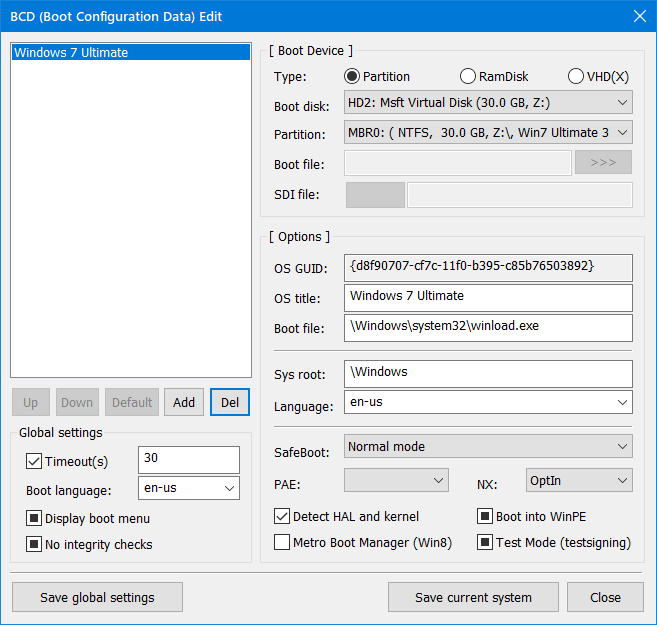
I have an updated W7 vhd that I boot loacally and I want to now use it in a VM (VBox). Since the BCD for booting was loacated outside of the vhd, I used Winntsetup to redo the BCD as shown below. The problem is, when I use the vhd in a VM, it starts to boot, but BSODs with 7b. When I try safe mode, it also abends. The last entry I see on the console before the BSOD is Classpnp.sys which is a storage class driver. So I assume I have a disk or controller driver installed in the vhd that doesn't work in a VM which may be causing the crash. @JFX or anyone else that might know how to resolve this, or something to try, please let me know.
-
If I remove a program from the start list, How do I get it to display again in the list? One my system, if I remove a program from the list, using it again later doesn't make it show up again in Start
-
I am using toolbars with StartAllBack. My quicklaunch toolbar is for my selected Apps. I have another toolbar that is created by Lenovo Power Manager which adds a useful Battery object. If I checkmark that toolbar to show in the taskbar, the SAB start icon tends to disappear under certain circumstances. It reappears in different situations such as mousing over the start icon or clicking on an empty space on the taskbar. If I uncheck the Power Manager Toolbar, none of this happens and the start icon never disappears. Is it possible for SAB to make thw start icon stick and not disappear? Happens too if the taskbar is unlocked.
-
No idea. I encountered the problem clean installing 26100.1 It's been turned off here ever since.
-
It's called Smart App Control and can be turned off in Defender or registry (0=Off 1=On 2=evaluation). Another half-baked attempt by Ms to tighten security that only gets in the way. https://support.microsoft.com/en-us/windows/smart-app-control-frequently-asked-questions-285ea03d-fa88-4d56-882e-6698afdb7003
-
I noticed SAB has a lot of duplicate icons in the tray icons config section. Sometimes three sometimes 2. They may or may not be checkmarked. The icons are visible only once on the taskbar. I'm using a quicklaunch folder on the taskbar if that matters. Running with SAB 3.9.5
-
@JFX or whoever knows I have and EFI partition that does not show a drive letter. For -syspart:{X} can I use -syspart:HDD-0:1 to get WinntSetup to update the EFI BCD there? i.e. d:\ThinApps\WinNTSetup\WinNTSetup_x64.exe NT6 -sysPart:HDD-0:1 -tempDrive:Z: -sysLetter:-C: -bcd:EFI -silent -setup Also, I can't remember why I used -sysLetter:-C: Should it not be -sysLetter:C: